Using Photofinish for Official Splits
At large meetings, you'll often get mid-race splits, generated by competitors carrying a timing chip. That's all well and good for those working with big budgets, but what about at the grassroots?
To work around this, we've got a way for you to use photofinish to add mid-race splits to your events, whether a 1500m split in a mile race, a 3000m split in a 5000m race, or any other combination you fancy.
All you need is a photofinish system set up at the distance at which you want to capture splits, and you're up and running!
Note
We have currently only added this feature for users of FinishLynx and SwissTiming, but can easily add more — get in touch if you'd like us to add it for your system of choice.
Setting Up Your Splits Events
In the events grid, you'll likely already have your main event set up.

Add a row to the events grid for each split you want to take, in each event you want to have splits for.
There are only three fields which matter in setting up a splits event, the event ID, the event code, and the rounds.
Event ID
Your event ID should be made up of three things:
- The base event ID of your main event, i.e. T01
- A dollar sign $
- An integer signifying the split number, i.e. 1
The above example would give a final event ID of T01$1.
The integer is used to differentiate between split events, where you have more than one corresponding to a main event, but is not otherwise used.
SwissTiming Warning
If you are using SwissTiming, you will be constrained by the four character limit on event IDs. This will mean that the base event ID of your main event can be maximum two characters, to allow you to add '$' and a number on to the end.
Event Code
Your event code should be the distance at which the split is taken.
If you are at the 1500 metre mark in a mile race, your code will be 1500.
If you are at the 600 metre mark in an 800 metres, your code will be 600.
Rounds
The rounds field on your splits event should exactly match the rounds field on your main event.
Events Grid Guidance
For a mile event with two splits, one taken at 1000 metres, and one at 1500 metres, your event grid would look like the following:
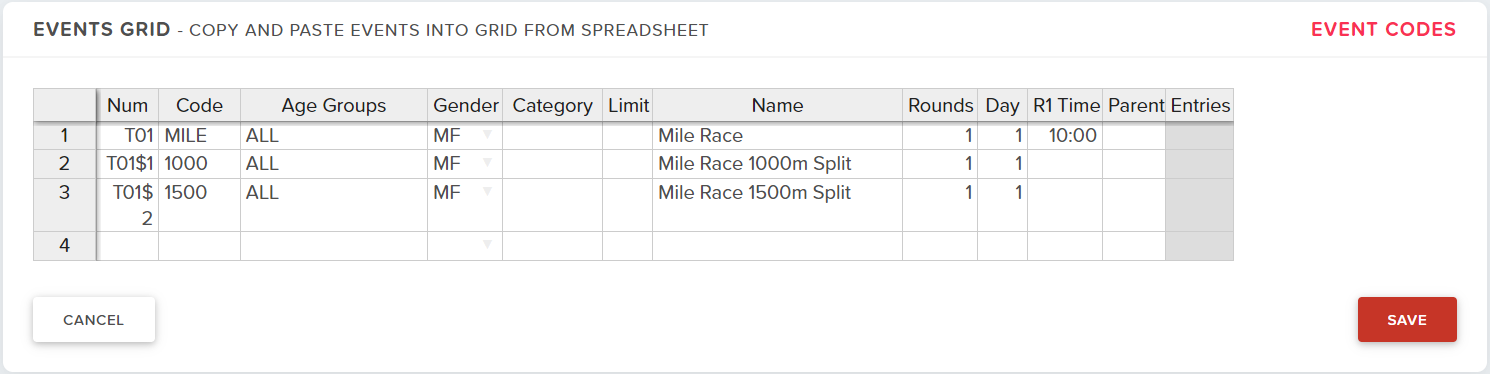
Split events have the same restrictions for what can be put into the event grid as normal events.
Upon saving a split event in the events grid, the Hide in timetable field will be ticked automatically.
Using Photofinish
Photofinish File Creation
The startlist files generated by OpenTrack for your photofinish system will have split events listed the same as any other event, with the exception that the startlist is taken from the main event - you do not need to create a startlist in any split events.
If you leave the time field blank for split events in your event grid, they should sort separately from your normal events in your startlist files, which do have times entered.
Photofinish Operation
When using photofinish to add splits, there should be no difference in how you are required to operate photofinish or use OpenTrack.
Photofinish File Processing
When a photofinish file corresponding to a splits event is uploaded, splits are added to your main event, and results are added to your splits event.
Splits files can be processed in any order - there is no need to process in distance order.
Adding of Splits
Splits will be displayed in the splits tab of the corresponding unit results page in your main event once processed.
If you reprocess your photofinish file at any point, it will only reprocess the splits contained in that file.
Adding of Results
Splits are added as a normal result in your split event. This allows you to use any of OpenTrack's downloads as normal, such as results PDFs or the Power of 10 download.